Tencent Meeting (VooV Meeting) User Guide
Tencent Meeting (VooV Meeting) User Guide
Introduction
Tencent Meeting (known as VooV Meeting for international users) is a professional video conferencing platform that enables seamless remote collaboration. This guide will help international experts download, install, and use VooV Meeting to join our online conference.
1. Download & Installation
Official Download Links
| Platform | Download Link | System Requirements |
|---|---|---|
| Windows | https://meeting.tencent.com/download-stable.html | Windows 7 or later |
| macOS | https://meeting.tencent.com/download-stable.html | macOS 10.11 or later (supports Apple Silicon) |
| iOS | App Store: Search "VooV Meeting" | iOS 12.0 or later |
| Android | Google Play: Search "VooV Meeting" | Android 5.0 or later |
| Web Version | https://voovmeeting.com/ | Chrome, Edge, Firefox browsers |
VooV Meeting supports multiple platforms. Please download the appropriate version for your device:
Installation Steps
1.Download the installer from the official website or app store
2.Run the installation file
3.Follow the on-screen instructions to complete installation
4.Launch VooV Meeting after installation completes
2. How to Join a Meeting
Method 1: Join via Meeting ID (Recommended)
1.Open VooV Meeting application
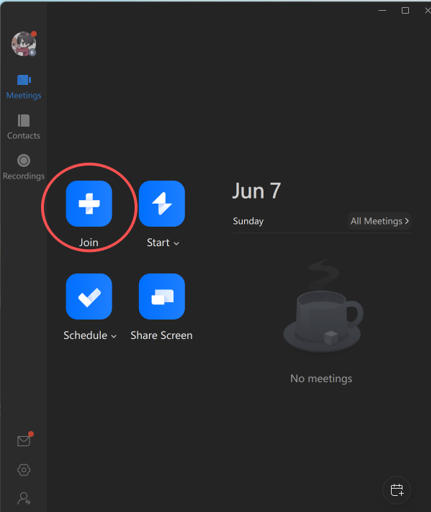
2.Click "Join Meeting" on the home screen
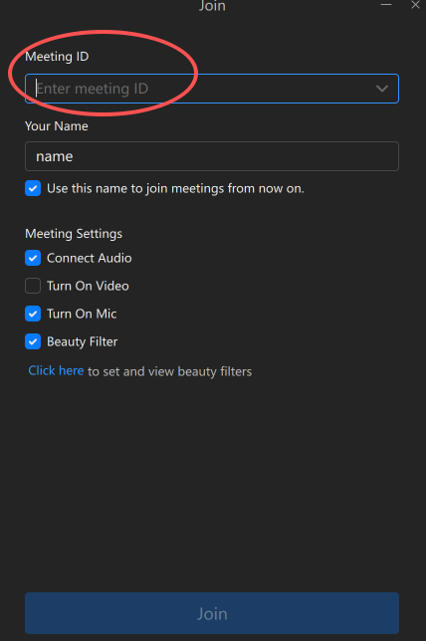
3.Enter the 9-10 digit Meeting ID provided in the invitation
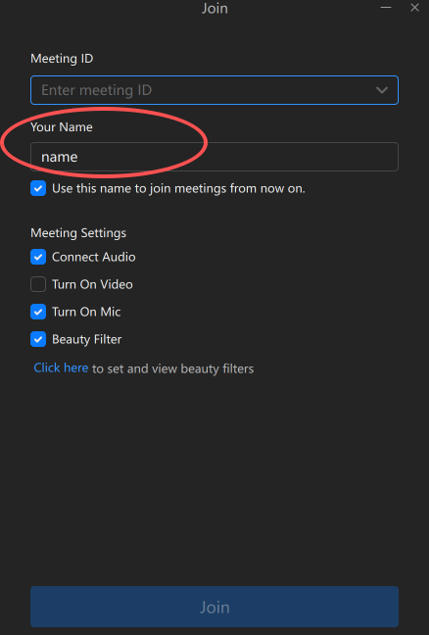
4.Enter your Name (please use your full name for identification)
5.Configure audio/video settings:
Toggle "Enable Camera" on/off
Toggle "Enable Mic" on/off
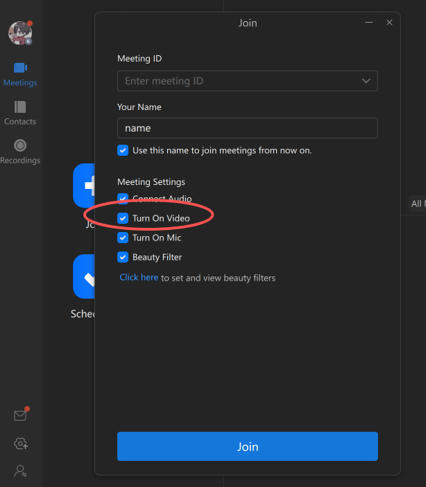
6.Click "Join Meeting"
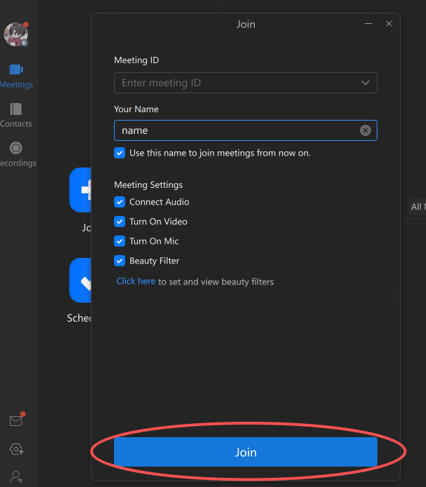
7.If a meeting password is required, enter the password provided
3. Basic Meeting Controls
Audio Controls
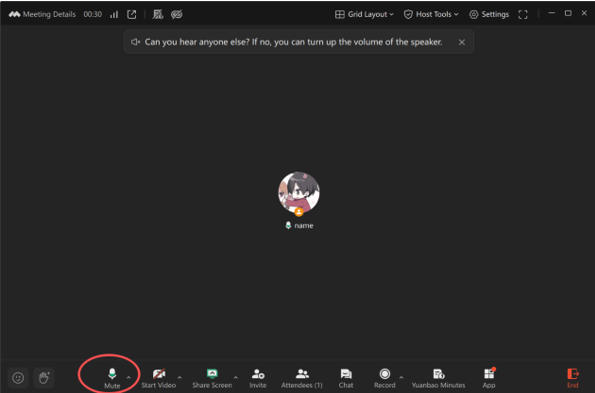
Mute/Unmute: Click the microphone icon at the bottom
Audio Settings: Click the arrow next to microphone to select input/output devices
Test Speaker & Mic: Use the audio test feature before joining
Video Controls
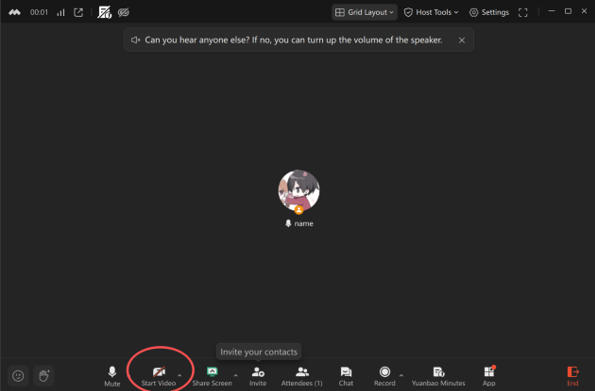
Start/Stop Video: Click the camera icon at the bottom
Video Settings: Click the arrow next to camera to select camera device
Virtual Background: Available in settings (optional)
Screen Sharing
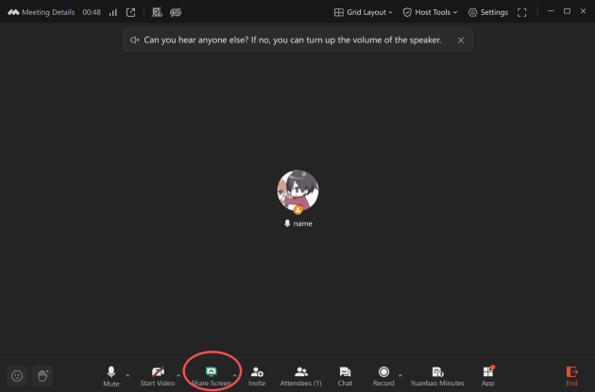
1.Click "Share Screen" at the bottom toolbar
2.Select the screen or application window you want to share
3.Click "Confirm" to start sharing
4.Click "Stop Share" when finished
4. Important Tips for International Users
Language Settings
Desktop: Go to Settings > General > Language to select English
Mobile: The app automatically follows your system language settings
Network Recommendations
Use a wired connection or strong Wi-Fi for best performance
Close other bandwidth-intensive applications
If video quality is poor:
Turn off your camera (audio-only mode)
Reduce video resolution in settings
Before the Meeting
1.Test your connection 5-10 minutes before the scheduled time
2.Check audio and video devices
3.Close unnecessary applications to free up system resources
4.Use headphones to reduce echo and improve audio quality
Troubleshooting Common Issues
Test Speaker & Mic: Use the audio test feature before joining
Video Controls
Start/Stop Video: Click the camera icon at the bottom
Video Settings: Click the arrow next to camera to select camera device
Virtual Background: Available in settings (optional)
Screen Sharing
1.Click "Share Screen" at the bottom toolbar
2.Select the screen or application window you want to share
3.Click "Confirm" to start sharing
4.Click "Stop Share" when finished
4. Important Tips for International Users
Language Settings
Desktop: Go to Settings > General > Language to select English
Mobile: The app automatically follows your system language settings
Network Recommendations
Use a wired connection or strong Wi-Fi for best performance
Close other bandwidth-intensive applications
If video quality is poor:
Turn off your camera (audio-only mode)
Reduce video resolution in settings
Before the Meeting
1.Test your connection 5-10 minutes before the scheduled time
2.Check audio and video devices
3.Close unnecessary applications to free up system resources
4.Use headphones to reduce echo and improve audio quality
Troubleshooting Common Issues
4.Click "Stop Share" when finished
4. Important Tips for International Users
Language Settings
Desktop: Go to Settings > General > Language to select English
Mobile: The app automatically follows your system language settings
Network Recommendations
Use a wired connection or strong Wi-Fi for best performance
Close other bandwidth-intensive applications
If video quality is poor:
Turn off your camera (audio-only mode)
Reduce video resolution in settings
Before the Meeting
1.Test your connection 5-10 minutes before the scheduled time
2.Check audio and video devices
3.Close unnecessary applications to free up system resources
4.Use headphones to reduce echo and improve audio quality
Troubleshooting Common Issues
| Issue | Solution |
|---|---|
| Cannot hear audio | 1. Check if you're muted 2. Verify speaker volume 3. Select correct audio device in settings |
| Others cannot hear you | 1. Unmute your microphone 2. Check microphone permissions 3. Select correct microphone device |
| Poor video quality | 1. Check internet connection 2. Close other video applications 3. Reduce video resolution |
| Cannot join meeting | 1. Verify Meeting ID is correct 2. Check internet connection 3. Try phone dial-in method |
| App crashes | 1. Restart the application 2. Update to latest version 3. Restart your computer |